
Change Hair Color in Photo Instantly — No Salon Visit Required
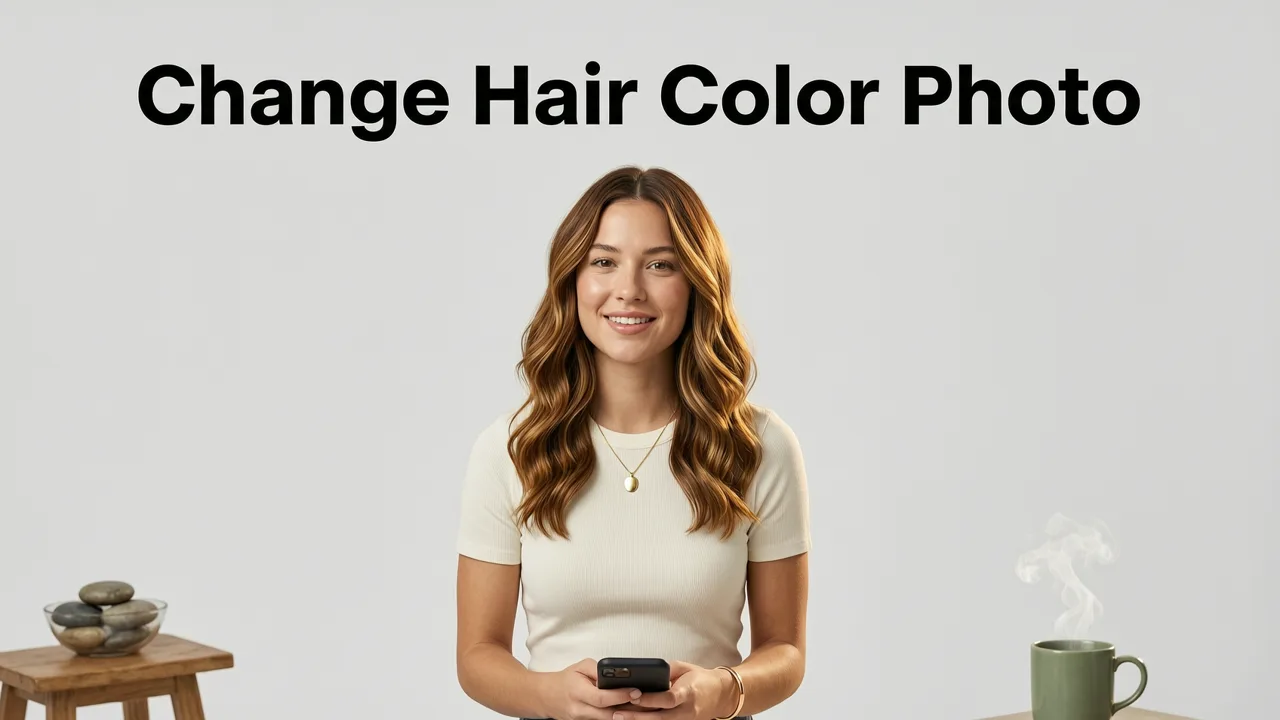
If you have ever stared at a celebrity's auburn balayage or a friend's icy platinum and wondered whether the same shade would actually suit you, the answer is now just one selfie away. You can change hair color in photo with Stylova's AI-powered tool in under ten seconds, previewing dozens of realistic shades on your own face before you ever sit in a salon chair.
Unlike legacy photo filters that paint a flat layer of pigment over your hair, Stylova's engine maps your individual hairline, strand texture, and face shape. The result is a salon-grade preview that accounts for lighting, undertone, and natural highlights — so what you see on screen is genuinely close to what you will see in the mirror.
How to Change Hair Color in Photo With Stylova
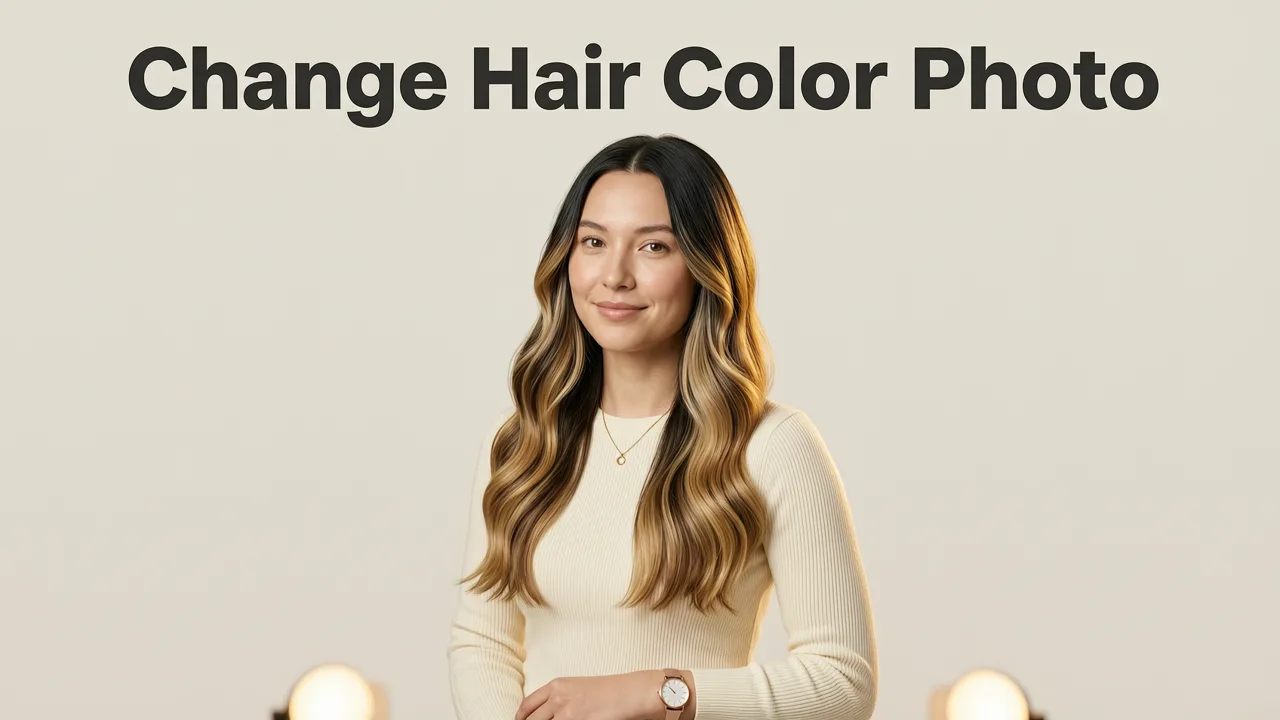
The process is built for speed and accuracy. Here is exactly what happens from upload to final preview.
Step 1 — Upload a Clear Selfie
Open the Try On Hairstyles With Your Selfie tool and take or upload a well-lit photo. Face the camera directly, pull hair away from your forehead, and avoid heavy filters. A clean, front-facing shot gives the AI the most data to work with.
Step 2 — Choose Your Shade Category
Browse the color library by family: blonde, brunette, red, black, pastel, fantasy, and grey coverage. Each category contains multiple tones — for example, blonde includes platinum, ash, honey, caramel, and golden variants.
Step 3 — Preview, Adjust, and Save
Tap a shade and the AI renders it onto your hair in real time. Use the intensity slider to fine-tune opacity, compare two shades side by side, and save your favorites to a personal mood board. When you are ready, export the image or share it directly with your colorist.
Why AI-Powered Previews Outperform Standard Filters
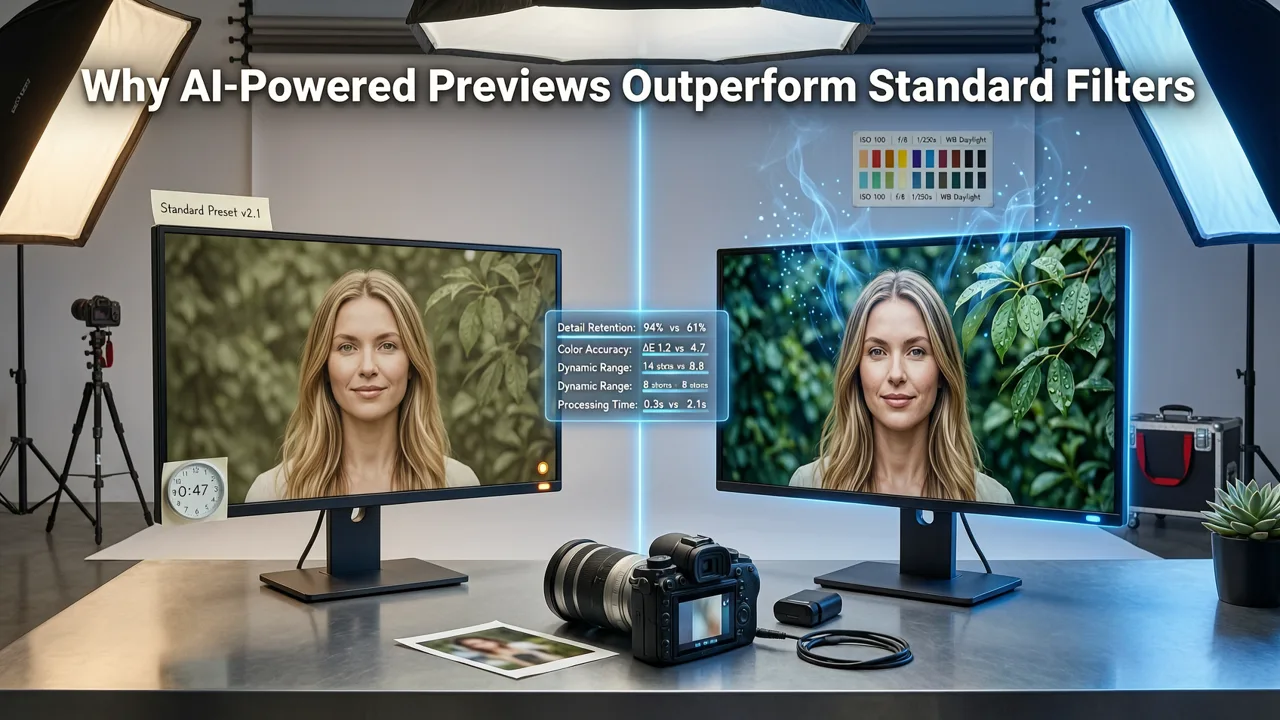
Traditional apps use a simple overlay — a semi-transparent color mask placed on top of your photo. That approach creates obvious problems: color bleeds onto your skin, highlights disappear, and the result looks like a sticker rather than a real dye job.
Stylova's engine, by contrast, uses a segmentation model trained on millions of hair images. It identifies individual strands, preserves your natural highlights and lowlights, and adjusts the new shade to match the lighting conditions of your original photo. The output follows the same principles of responsible AI design, prioritizing accuracy over exaggeration.
Key Technical Differences
| Feature | Standard Filter Apps | Stylova AI Engine |
|---|---|---|
| Hairline detection | Manual brush selection | Automatic face-aware segmentation |
| Highlight preservation | None — flat color overlay | Retains natural light and shadow |
| Skin bleed protection | Frequent color leakage | Precision edge masking |
| Shade library size | 10–20 generic tones | 100+ nuanced shades |
| Real-time adjustment | Re-upload required | Instant slider and comparison |
Choosing the Right Shade for Your Skin Tone
Changing hair color in photo is only useful if the shade you pick actually flatters you. Here is a quick framework stylists use to match tone to complexion.
Identify Your Undertone
- Warm: Veins appear greenish; gold jewelry looks best. Lean toward honey blonde, copper, caramel, and warm brown.
- Cool: Veins appear bluish; silver jewelry looks best. Lean toward ash blonde, platinum, cool brown, and burgundy.
- Neutral: A mix of both. You can pull off a wide range, from beige blonde to chocolate brown.
Test Before You Commit
Use the Hair Color Changer App to cycle through five to ten shades that match your undertone. Save the top three, then show the comparison set to your colorist. This single step dramatically reduces the chance of an expensive corrective appointment.
Change Hair Color in Photo for Every Style Goal
Different clients use the tool for different reasons. Here are the most common use cases in 2026.
First-Time Dye Clients
If you have never colored your hair, the idea of a dramatic change can feel intimidating. Previewing the shade on your own face removes the guesswork and builds confidence before the appointment.
Correction Recovery
After a DIY color mishap, you need a clear picture of the target shade so your colorist can formulate the right corrective plan. A precise reference image speeds up the consultation.
Grey Coverage Planning
Deciding between a permanent dye, a demi-permanent gloss, or a root touch-up spray becomes easier when you can see how each option would look across your full head of hair.
Fantasy and Seasonal Color
Planning a pastel pink for summer or a deep violet for autumn? The fantasy shade library lets you experiment freely without any chemical commitment.
Pairing Your New Color With a Fresh Cut
Hair color and haircut work together to define your overall look. After you settle on a shade, explore how different lengths and textures frame your face in the Best AI Hairstyle Try-On App guide. A sharp bob might call for a bold copper, while soft layers often pair better with a dimensional balayage.
If you are also considering facial hair changes, the Best Beard Try-On App lets you preview beard styles and tints in the same session, keeping your entire look cohesive.
Tips for the Most Realistic Preview
Getting the most accurate result from any AI color tool depends partly on the quality of your source photo. Follow these guidelines.
- Use natural light. Stand near a window or shoot outdoors in open shade. Harsh overhead fluorescent light distorts color balance.
- Keep hair down and dry. Wet hair reflects light differently and appears darker than dry hair.
- Remove hats and accessories. Anything covering your hairline reduces the AI's detection accuracy.
- Avoid heavy beauty filters. Pre-existing color grading in your photo can skew the rendered shade.
- Take multiple angles. A three-quarter view and a direct front view give the most complete picture of how the color wraps around your head.
Privacy and Data Handling
Uploading a selfie raises valid privacy questions. Stylova processes images on-device wherever possible and does not store biometric data beyond the active session. Images are encrypted in transit and deleted from servers within 24 hours unless you explicitly choose to save them. For a deeper look at how leading AI platforms approach user safety, review OpenAI's documentation on data handling standards.
How Stylova Compares to Other Color Tools in 2026
The market now includes salon-brand apps, generic photo editors, and standalone AI tools. Here is how they stack up for the specific task of changing hair color in photo.
| Criteria | Salon Brand Apps | Generic Photo Editors | Stylova |
|---|---|---|---|
| Shade range | Limited to brand palette | Broad but generic | 100+ shades across all families |
| Face-aware rendering | Varies | No | Yes — full segmentation |
| Highlight retention | Partial | None | Full |
| Side-by-side comparison | Rarely | Manual | Built-in |
| Export for colorist | Brand-locked | Standard JPEG | High-res with shade metadata |
Common Mistakes to Avoid
Even the best AI preview can mislead if used carelessly. Watch out for these pitfalls.
- Ignoring your base color. Going from dark brown to platinum blonde requires multiple sessions. The preview shows the end result, not the journey — discuss the process with your colorist.
- Relying on screen brightness. A phone screen set to maximum brightness will make shades appear lighter than they are. Calibrate your display or compare on a second device.
- Forgetting maintenance. Vivid fantasy colors and cool blondes demand regular toning. Factor in upkeep time and cost before committing.
- Skipping a strand test. Even with a perfect digital preview, a physical strand test is the only way to confirm how your specific hair chemistry will react to the formula.
From Preview to Appointment — Next Steps
Once you have found a shade you love, the transition from screen to salon is straightforward. Export your top two or three previews and bring them to your consultation. Your colorist will use them as a visual reference, then perform a strand test to confirm the formula. Most clients who arrive with a clear reference image report higher satisfaction and fewer revisions than those who describe their goal in words alone.
Conclusion
The ability to change hair color in photo has moved well beyond gimmicky overlays. In 2026, AI-powered tools like Stylova deliver realistic, face-aware previews that genuinely help you make better decisions before you spend time and money at the salon. Upload a selfie, test a handful of shades, and walk into your next appointment with total confidence in your choice.
Ready to see your new color before you commit? Open Stylova now and preview your perfect shade in seconds.


